How to Block Porn on a Mac (Step-by-Step for macOS 2026)
The quickest way to block porn on a Mac is to open System Settings > Screen Time > Content & Privacy, choose Limit Adult Websites, and lock it with a Screen Time passcode that someone else holds. Because Apple's filter is built around Safari, back it up with a family DNS filter and a standard user account so Chrome, Firefox and quick workarounds don't slip past it.
Below you'll get the exact menu paths for macOS 27, Tahoe 26, Sequoia 15 and older versions, verified DNS addresses, Terminal steps for the hosts file, and a checklist for closing the loopholes most guides skip.
Why One Setting Is Not Enough on a Mac

Screen Time works for Safari, but a Mac is an open computer. Anyone with an admin password can install another browser, change DNS, edit system files or switch accounts.
So think in layers:
Screen Time filters Safari and locks settings behind a passcode.
DNS filtering blocks adult domains for every browser and app on the Mac or the whole home network.
The hosts file and SafeSearch lock add a device-level backstop.
Account and browser hygiene (standard user, no private-browsing gaps, no VPNs) closes the bypasses.
If you're blocking for yourself, a blocker is a speed bump between an urge and a click. It buys you minutes, and those minutes matter. If you keep finding ways around your own blocks, our guide on why porn is so hard to quit explains why.
Method 1: Screen Time "Limit Adult Websites" (Step-by-Step)

macOS 27, macOS Tahoe 26 and macOS Sequoia 15
According to Apple's Mac User Guide:
Choose Apple menu > System Settings.
Click Screen Time in the sidebar (you may need to scroll).
If you manage a child through Family Sharing, pick them from the Family Member pop-up menu. For your own account, skip this.
Click Content & Privacy, then click App Store, Media, Web, & Games.
Under Safari, choose Limit Adult Websites.
Click Customize to add sites under Restricted (always blocked) or Allowed (never blocked). Click the Add (+) button, enter the URL, then click Done.
If Screen Time isn't on yet, Apple's setup guide for your own account says to turn on App & Website Activity first.
macOS Sonoma 14
On Sonoma, the button has a different name. Go to System Settings > Screen Time > Content & Privacy > Store, Web, Siri & Game Center Content, then set Web Content to Limit Adult Websites (pick macOS Sonoma 14 in the version selector of Apple's guide to see this wording).
Older Macs
On macOS Catalina 10.15 and Big Sur 11, the control lives under System Preferences instead. Labels shift between releases, so if yours look different, use the version selector at the top of Apple's help page.
macOS 27, Tahoe 26, Sequoia 15: System Settings > Screen Time > Content & Privacy > App Store, Media, Web, & Games > Safari
Sonoma 14: System Settings > Screen Time > Content & Privacy > Store, Web, Siri & Game Center Content > Web Content
Big Sur 11, Catalina 10.15: System Preferences > Screen Time > Content & Privacy > Content
What Limit Adult Websites actually does
Apple says the setting automatically limits access to many adult websites. "Many" is not "all." New and lesser-known sites get through, so add any you know about to the Restricted list.
After you turn it on, open Safari and check File > New Private Window. If it's grayed out, private browsing is disabled for that account. If it still works, treat private windows as a gap you need to close another way (see the loopholes section below).
Allowed Websites Only (the strictest mode)
The third option, Allowed Websites Only, flips the logic: nothing loads except sites on your list. Click Customize to see Apple's default list, then add the sites you need, with a title and URL for each.
It's heavy-handed for an adult who works online, but it can suit a young child's Mac or a short "lockdown" after a relapse. Test it in every installed browser.
Safari vs Chrome and Firefox: the big gap
In Apple's current help pages, the web content options sit under a section literally labeled Safari, and Apple doesn't say they apply to other browsers (Apple).
User reports match that: Chrome, Firefox and other third-party browsers often load sites that Safari blocks. Behavior varies by version, so test it on your own Mac.
Your options:
Remove other browsers you don't need. Keep in mind that standard users can still install apps, so this alone won't stop a determined bypass.
Use DNS filtering (Method 2 below). It works below the browser level, so it covers Chrome, Firefox, Edge, Brave and apps.
Add a Chrome extension blocker if Chrome is your main browser. We cover Chrome-specific options in how to block adult websites on Google Chrome.
Lock It: Screen Time Passcode and Who Holds It

A filter you can switch off in two clicks won't hold during a strong urge. Lock it.
Set the passcode
From Apple's passcode instructions:
Open System Settings > Screen Time.
Scroll down and turn on Lock Screen Time Settings.
Enter a four-digit passcode, then enter it again to confirm.
Apple describes this lock as requiring a passcode to change Screen Time settings and to grant more time when limits run out (Apple, Manage Screen Time).
Have someone else hold it
If you set the passcode yourself, you know it. Ask a trusted person (partner, friend, mentor, accountability partner) to type it in while you look away. They keep it, you don't.
One catch: Apple's steps for changing or removing the passcode let you enter the current code or verify with your password or Touch ID. In practice, that means if you know the Mac's administrator password, assume you can get around the passcode. That's why the next step matters.
Use a standard account for daily life
Apple lists three account types. An administrator can add and manage users, install apps and change settings. A standard user can install apps and change their own settings, but can't add users or change other users' settings (Apple, Add a user).
The setup that holds up best:
Go to System Settings > Users & Groups > Add User.
Create a new Administrator account and give its password to your trusted person (or write it down and store it somewhere you can't casually reach).
Turn your everyday account into a Standard account: click the Info (i) button next to your name in Users & Groups and turn off the administrator option.
Log in to your standard account and set up Screen Time there.
When you turn on Lock Screen Time Settings for a family member who has an administrator account, macOS prompts you to convert it to a standard account (Apple).
Family Sharing: managing a child's Mac
If you're a parent, Family Sharing is the cleanest way to filter a child's Mac, because you manage it from your own account.
Per Apple's guide to setting up Screen Time for a child:
On your own Mac account, signed in with your Apple Account, open System Settings > Screen Time.
Choose your child from the Family Member pop-up menu.
Click Set Up Screen Time For Your Child, click Continue, and follow the steps. You'll set content restrictions, App & Website Activity and a four-digit passcode.
Afterward, open Content & Privacy for that child and confirm the web setting.
Two details from Apple worth knowing:
For children under 13 (the age varies by country or region), the Web Content Filter blocks adult content by default.
If you don't use Family Sharing, you can still set up Screen Time by logging in to the child's own Mac user account.
If the Family Member menu doesn't appear, make sure you're signed in to your Apple Account and that Family Sharing is set up.
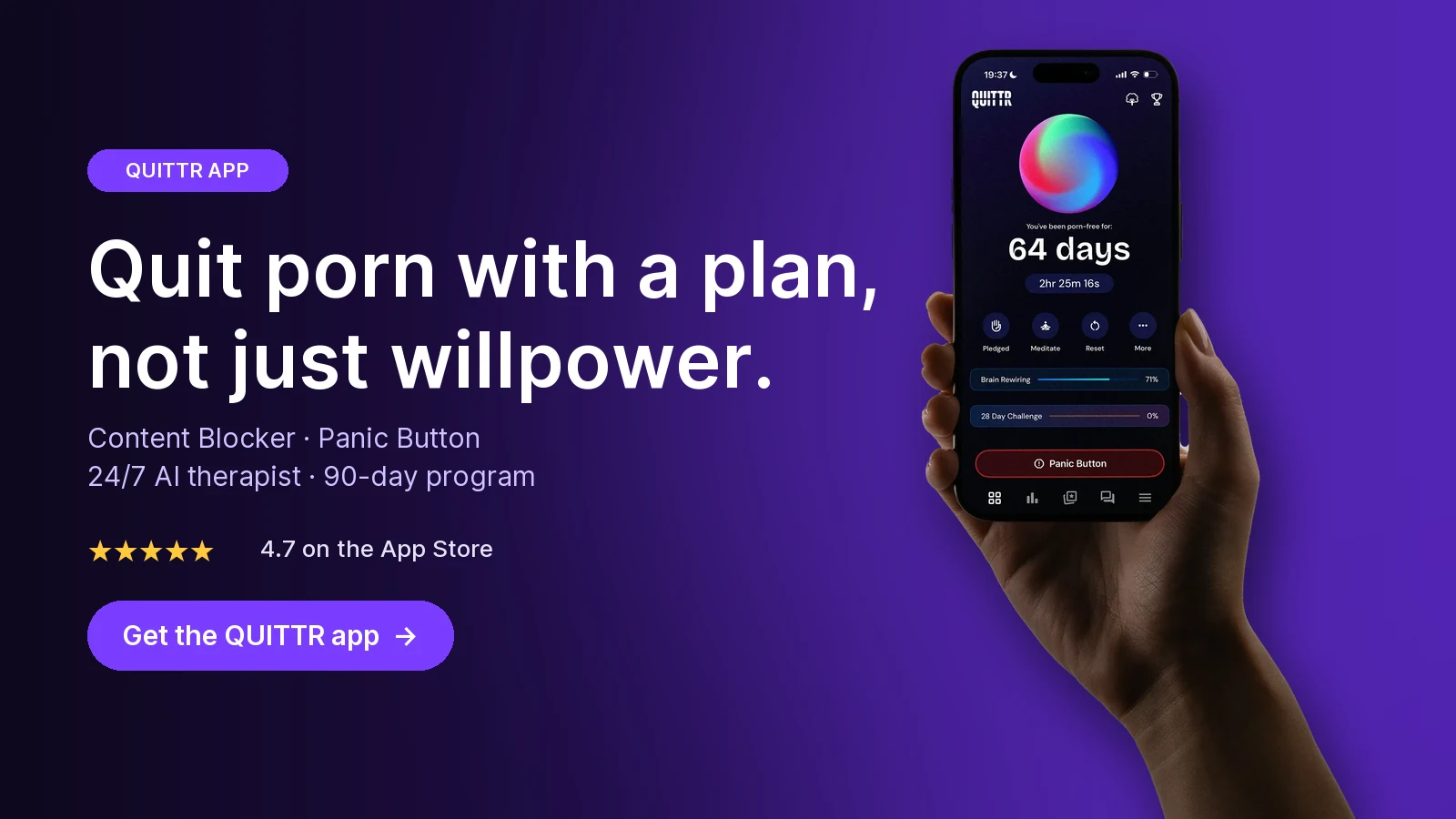
Ready to quit with a plan? Download QUITTR for iPhone or Android → · See how the app works
Method 2: DNS Filtering on the Mac and the Router

Every time you type a website address, your Mac asks a DNS server where that site lives. A family DNS service simply refuses to answer for adult domains. That's why it covers every browser at once.
Free family DNS services (verified October 2026)
IPv4 addresses: 185.228.168.168, 185.228.169.168
IPv6 addresses: 2a0d:2a00:1::, 2a0d:2a00:2::
What it blocks: Adult sites, proxy/VPN domains used for bypass, mixed-content sites like Reddit, malicious domains; forces SafeSearch on Google, Bing and YouTube
IPv4 addresses: 185.228.168.10, 185.228.169.11
IPv6 addresses: 2a0d:2a00:1::1, 2a0d:2a00:2::1
What it blocks: Adult sites and malicious domains; SafeSearch on Google and Bing; does not block VPNs, proxies or Reddit
Cloudflare 1.1.1.1 for Families
IPv4 addresses: 1.1.1.3, 1.0.0.3
IPv6 addresses: 2606:4700:4700::1113, 2606:4700:4700::1003
What it blocks: Malware and adult content
IPv4 addresses: 208.67.222.123, 208.67.220.123
IPv6 addresses: Not listed on setup guide
What it blocks: Preconfigured to block adult content
CleanBrowsing's free tier needs no account, but it's throttled and comes without support. All four options are free as of October 2026.
For most people trying to quit, the CleanBrowsing Family Filter is the strongest free pick, because it also blocks many VPN and proxy domains and enforces SafeSearch.
Set DNS on the Mac itself
From Apple's DNS instructions:
Choose Apple menu > System Settings, then click Network.
Click your network service (for example Wi-Fi).
Click Details, then click DNS.
Under DNS Servers, click the Add (+) button and enter the first address. Repeat for the second.
Remove any other servers in the list so the Mac can't fall back to an unfiltered one, then confirm the change.
DNS is set per network service. Repeat the steps for Ethernet or any other connection you use.
Set DNS on your router
A router setting protects every device on your home Wi-Fi, including phones, tablets and guest laptops.
Log in to your router's admin page (the address is usually printed on the router or in its app).
Find the Internet, WAN or DNS settings.
Replace the automatic DNS with the two IPv4 addresses from the table. If your network uses IPv6, enter the IPv6 addresses too, or IPv6 lookups may skip the filter.
Save, restart the router, and test.
Some internet providers lock DNS on their routers. If yours does, set DNS on the Mac instead, or use the provider's own parental controls.
The router alone has holes
A router filter stops working the moment the Mac joins another network, like a phone hotspot or café Wi-Fi. Set DNS on both the router and the Mac for full coverage.
Also check iCloud Private Relay. Apple says Private Relay protects Safari browsing and DNS resolution queries, which means Safari's lookups may not go through your filter (Apple Developer). Turn it off in System Settings > [your name] > iCloud > Private Relay, or turn off Limit IP address tracking for a specific network under System Settings > Network > Details (Apple). Private Relay is part of iCloud+, so if you don't pay for iCloud+, it isn't active.
Method 3: The Hosts File and a SafeSearch Lock (Terminal)
The hosts file is a small system file that tells your Mac which address to use for a domain before it asks any DNS server. Point a porn domain at 0.0.0.0 and it goes nowhere, in every browser.
It's free and works offline. It's also manual, so use it as a backstop, not your main filter.
Block sites with the hosts file
Open Finder > Applications > Utilities > Terminal.
Back up the file first:
sudo cp /private/etc/hosts /private/etc/hosts.backupEnter your administrator password (nothing appears as you type).Open the file in the nano editor:
sudo nano /private/etc/hostsUse the arrow keys to move to the bottom. Add one line per domain, plus the "www" version:
0.0.0.0 example-site.com0.0.0.0 www.example-site.comSave with Control-O, press Return, then exit with Control-X.
Restart your browser, or restart the Mac so cached lookups are cleared.
Many guides also suggest flushing the DNS cache with sudo dscacheutil -flushcache; sudo killall -HUP mDNSResponder. Apple no longer documents this for current macOS, so a restart is the simplest sure option.
Limits of the hosts file
No wildcards. You must list every domain and subdomain by hand. There are far more adult sites than you could ever type.
Admins can undo it. Google notes that users with administrator rights on the device can reverse hosts-file changes (Google). On a standard account, you'd need the admin password.
Test after browser updates. Browsers with their own secure DNS settings should still be checked to confirm blocked domains stay blocked.
Lock Google SafeSearch
SafeSearch hides explicit results in Google Search, Images and Video. Turning it on at google.com/safesearch (choose Filter) is easy, but you can switch it right back off.
To lock it on the Mac, Google's own instructions for devices you manage use the hosts file:
In Terminal, run
ping forcesafesearch.google.comand note the IP address it returns. Press Control-C to stop.Run
sudo nano /private/etc/hosts.At the end, add:
<that IP> www.google.com #forcesafesearch. Add similar lines for other Google domains you use, such as www.google.co.uk.Save and exit.
Visit google.com and confirm SafeSearch is on and can't be turned off.
Google says this applies to all browsers on the device. On a network, admins can do the same thing with a DNS CNAME record pointing www.google.com to forcesafesearch.google.com, which can't be undone at the browser level.
If you use CleanBrowsing's Family or Adult filter, SafeSearch is already enforced on Google and Bing.
Method 4: Browser Extensions and Blocker Apps

Extensions are useful for the browser you live in. Many add keyword blocking and search-result filtering that DNS can't do.
Their weak spots:
An extension only protects the browser it's installed in.
It can usually be disabled or removed in seconds.
In Chrome, check the extension's Details page and turn on Allow in incognito, or private windows may slip past it.
Dedicated blocker and accountability apps sit between extensions and DNS in strength. If you want to compare paid options, see our roundup of the best porn blocker apps and our wider guide on how to block porn on a computer. Your phone needs the same treatment, since a blocked Mac and an open phone just moves the problem; see how to block porn on iPhone and Android.
Comparing Every Method
Screen Time: Limit Adult Websites
Setup difficulty: Easy
Difficulty to bypass: Medium with passcode held by someone else; easy without
Covers all browsers?: No, built around Safari
Cost: Free
Screen Time: Allowed Websites Only
Setup difficulty: Easy
Difficulty to bypass: Medium to hard with passcode
Covers all browsers?: Test on your Mac; documented under Safari
Cost: Free
DNS filter on the Mac
Setup difficulty: Easy
Difficulty to bypass: Easy for an admin; harder on a standard account
Covers all browsers?: Yes, unless a browser uses its own secure DNS or a VPN
Cost: Free
DNS filter on the router
Setup difficulty: Medium
Difficulty to bypass: Easy by switching networks or using a VPN
Covers all browsers?: Yes, on that network
Cost: Free
Hosts file
Setup difficulty: Medium (Terminal)
Difficulty to bypass: Needs admin password
Covers all browsers?: Yes
Cost: Free
Google SafeSearch lock (hosts)
Setup difficulty: Medium (Terminal)
Difficulty to bypass: Needs admin password
Covers all browsers?: Yes, for Google Search only
Cost: Free
Browser extension
Setup difficulty: Easy
Difficulty to bypass: Easy (disable, Incognito, other browser)
Covers all browsers?: No
Cost: Free to paid
Standard user account + someone else holds admin password
Setup difficulty: Medium
Difficulty to bypass: Hard
Covers all browsers?: Supports all methods above
Cost: Free
The pattern is clear: no single method is hard to bypass on its own. The combination of a standard account, a passcode you don't know and a DNS filter is what makes a real difference.
Close the Loopholes

Run through this checklist once everything is set up.
Private browsing
Check Safari's File > New Private Window after enabling Screen Time, and turn on Allow in incognito for any Chrome blocking extension. DNS filters still apply in private windows, which is another reason to use one.
Other browsers
List every browser on the Mac (look in Applications and in the Applications folder inside your home folder). Remove the ones you don't need. Test each remaining browser with a site you've added to the Restricted list.
DNS-over-HTTPS inside browsers
Browsers can send DNS lookups over their own encrypted connection, skipping your Mac's DNS settings.
Chrome: Go to Settings > Privacy and security > Security, and under Advanced check Use secure DNS. Chrome's help page says secure DNS is on in automatic mode by default, and that you can't use it when parental controls are on or the device is managed (Google Chrome Help). Turn it off, or pick a custom provider and enter your filter's DoH address (CleanBrowsing Family: https://doh.cleanbrowsing.org/doh/family-filter/; Cloudflare for Families: https://family.cloudflare-dns.com/dns-query).
Firefox: Go to Settings > Privacy & Security > DNS over HTTPS. Mozilla says Default Protection turns DoH off when parental controls are active or the network signals it shouldn't be used, while Increased and Max Protection keep it on (Mozilla Support). Set it to Off, or to a custom provider using your family filter's DoH address.
VPNs and proxies
A VPN sends traffic, and often DNS, through its own servers, so it can skip router and Mac DNS filters. Delete VPN apps you don't need. CleanBrowsing's Family filter blocks many proxy and VPN domains, which makes it harder to sign up for one in a weak moment.
Admin rights and extra accounts
Use a standard account every day. Remove unused user accounts, because Screen Time only filters the accounts you set it up on. Files already saved on the Mac aren't touched by any web filter, so delete them.
When blocking isn't enough
Blocks reduce access. They don't change why you reach for porn in the first place. If you find yourself spending an hour trying to get around a filter, that's the urge doing the planning, not a technical problem.
A few things help alongside the blocks:
Plan what you'll do in the first five minutes of an urge (walk, call someone, cold water, push-ups).
Tell one person what you're doing. Accountability makes the passcode setup work.
If you slip, don't throw the system away. Read our step-by-step guide on bouncing back after a porn relapse and tighten the layer that failed.
If you feel stuck, a therapist who works with compulsive sexual behavior can help. That's a strength move, not a failure.
Key takeaways
On current macOS, go to System Settings > Screen Time > Content & Privacy > App Store, Media, Web, & Games and choose Limit Adult Websites; on Sonoma the button is Store, Web, Siri & Game Center Content.
Apple documents the web filter under Safari, so add a family DNS filter to cover Chrome, Firefox and apps.
Lock everything with a Screen Time passcode someone else holds, and use a standard account while a trusted person keeps the admin password.
Turn off or redirect browser DNS-over-HTTPS and iCloud Private Relay, remove VPNs and extra browsers, and test each browser.
Blocking buys time during urges; pair it with a plan for what you'll do instead.
How QUITTR Can Help
Mac settings slow you down, but most relapses start with a feeling, not a URL. QUITTR is a gamified recovery app built around a 90-day, science-based program that pairs cognitive-behavioral tools with streaks and rewards.
On your phone, the QUITTR Content Blocker filters adult websites, risky search terms and porn URLs, and QUITTR also offers a Google Chrome extension. When an urge hits, the Panic Button launches breathing exercises, distractions and motivational messages to break autopilot. The AI therapist Melius gives private, 24/7 support during urges and after a relapse, and the tracker shows your porn-free streak.
QUITTR is subscription-based and available on iOS and Android. Download QUITTR and check the app for current pricing.
“I didn’t think I could ever break free from porn—but QUITTR’s content blocker gave me the tools to regain control. The sense of achievement and freedom I feel today is beyond words.” — Daniel Franklin
Join the 28-day challenge. Get QUITTR on the App Store or Google Play → · Learn more about QUITTR
Related articles
Frequently Asked Questions
Does Screen Time block porn in Chrome on a Mac?
Not reliably. Apple documents the web content limits under Safari and does not say they cover other browsers, and many users report Chrome and Firefox ignoring Limit Adult Websites. If Chrome or Firefox is installed, add a DNS filter or remove those browsers, then test each browser yourself.
What is the best free way to block porn on a MacBook?
Combine Screen Time's Limit Adult Websites (for Safari) with a free family DNS filter such as CleanBrowsing Family (185.228.168.168 and 185.228.169.168), Cloudflare for Families (1.1.1.3 and 1.0.0.3) or OpenDNS FamilyShield (208.67.222.123 and 208.67.220.123). Then use a standard user account so the settings are harder to undo.
Can I block porn on my own Mac so I can't undo it?
Not completely, as long as you know the admin password. The strongest setup is a standard account for daily use, with a trusted person holding the admin password and the Screen Time passcode. Treat blocking as a speed bump that buys you time during an urge, not as a cure.
Why is Limit Adult Websites not working on my Mac?
Common causes are using a browser other than Safari, a site the automatic filter misses, or testing on a different user account than the one you set up. Add the site under Customize, check which account you're logged in to, and back the filter up with DNS filtering.
Does a VPN bypass porn blocking on a Mac?
A VPN can bypass DNS filters set on your router or Mac, because it can send lookups to its own servers. CleanBrowsing's Family filter also blocks many proxy and VPN domains, and a standard account plus a passcode makes installing new tools harder.
Sources
Change App Store, Media, Web, & Games settings in Screen Time on Mac — Apple Support
Set, change, or remove a Screen Time passcode on Mac — Apple Support
Prepare your network or web server for iCloud Private Relay — Apple Developer
Set up 1.1.1.1 (including 1.1.1.1 for Families) — Cloudflare Docs
Lock SafeSearch for devices & networks you manage — Google Search Help
Configure DNS over HTTPS protection levels in Firefox — Mozilla Support