How to Block Adult Sites on Your Phone Permanently (2026)
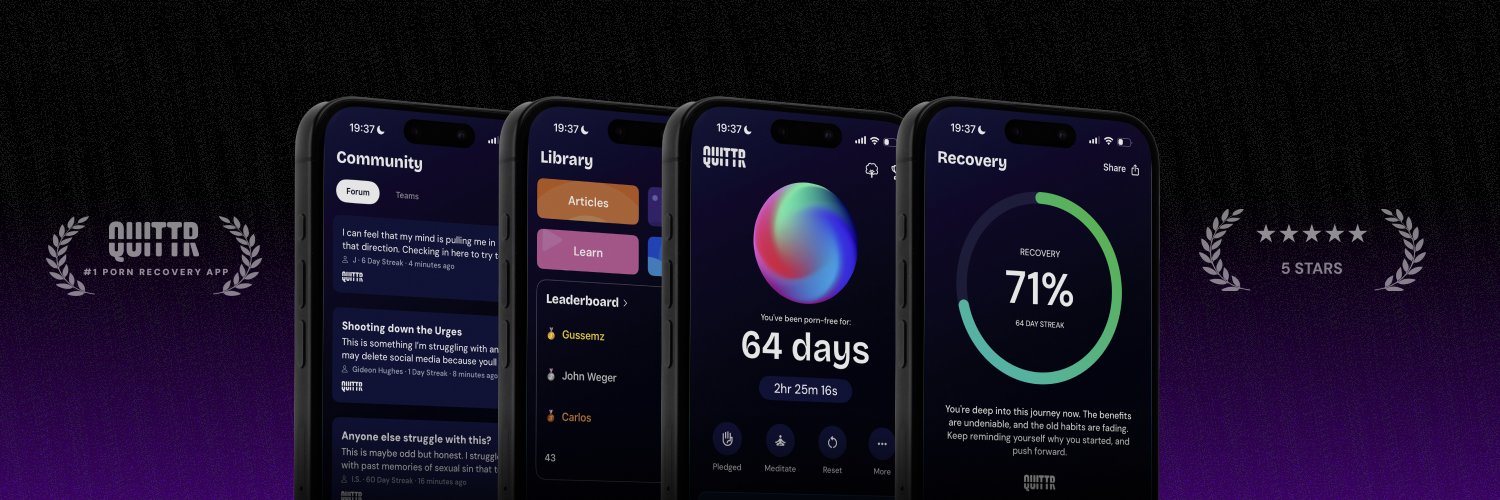
To block adult sites on your phone permanently, stack three layers: the phone's built-in content filter (Screen Time on iPhone, Parental controls or Private DNS on Android), a filtering DNS that works on both Wi-Fi and mobile data, and a blocker app you can't delete. Then give the passcode to someone you trust, so turning it off takes another person, not ten seconds of willpower.
Below you'll find the exact settings for iOS 26 and 27 and Android 15 to 17, checked against Apple's and Google's help pages in October 2026. You'll also get a loophole table (other browsers, VPNs, Private DNS, iCloud Private Relay, new accounts), what to do if you already know your own passcode, and an honest look at where "permanent" stops being true.
Why "Permanent" Means Layers Plus Someone Else's Passcode

Most guides show you how to turn a filter on. That's the easy part. The hard part is that whoever holds the phone can usually turn it off again, and during a strong urge, that person is you.
A setup that lasts has two properties:
No single switch turns everything off. If the DNS profile gets removed, Screen Time still filters. If one browser slips through, the DNS still blocks the domain.
The switches that matter are locked behind a code you don't know. You make the decision once, while you're calm, and your 1 a.m. self can't quietly reverse it.
Here's what each layer does:
Built-in content filter: Screen Time's Limit Adult Websites on iPhone, or the web content filters in Android 17's Parental controls. Filters browsing at the system level and sits behind a passcode or PIN.
Filtering DNS: A DNS profile on iPhone or a Private DNS hostname on Android. Refuses to look up adult domains in every app, on Wi-Fi and mobile data.
Blocker app: Catches keywords, risky searches and sites the other layers miss. Some add uninstall protection and an accountability partner.
The lock: A Screen Time passcode or Android parental controls PIN that someone else sets, with recovery tied to their account, not yours.
If you want free tools for each layer, our guide to the best free porn blocker compares them. For your home Wi-Fi, see how to block porn on your router. This article is about making a phone setup stick.
Step 1: Choose Your Lock Holder Before You Touch Settings

Every step below ends with "let your lock holder enter the code." So pick that person first.
A good lock holder is someone who:
Won't shame you when you ask for something to be unlocked.
Will say no at midnight and yes, within reason, to a legitimate request in daylight.
Is reachable, but not so close that the relationship turns into policing. Many people find a friend, mentor or group leader works better than a spouse.
Agree on simple rules before you start. For example: they only unlock for a specific, stated reason, never on the same night you ask, and they re-lock it afterward. If you're not sure who to ask, our guide on how to find an accountability partner walks through it.
Then sit together for 20 minutes and do the setup below. They type every code. You look away.
Step 2: Lock Down an iPhone (iOS 26 and iOS 27)
Apple redesigned Screen Time in iOS 27, so some labels differ between versions. The steps below say which version each path comes from.
Turn on the adult website filter
On iOS 26, Apple's iPhone User Guide gives this path:
Open Settings and tap Screen Time.
Tap Content & Privacy Restrictions, then turn on Content & Privacy Restrictions.
Tap App Store, Media, Web, & Games, then tap Web Content.
Select Limit Adult Websites.
Under Never Allow, tap Add Website and enter any site that gets through.
On iOS 27: Apple's current guide still runs App Store restrictions through Screen Time > Content & Privacy Restrictions, but its page for your own device no longer spells out the web filter steps. (For child accounts, Apple moved filtering to Settings > Family > [child] > Apps & Websites > Restrictions > Filtering.) If Web Content isn't where iOS 26 put it, use the search bar at the top of Settings and type "Adult Websites."
Stop the blocker from being deleted
According to Apple's App Store restrictions page for iOS 27, go to Settings > Screen Time > Content & Privacy Restrictions > iTunes & App Store Purchases to choose restrictions for installing or deleting apps.
Deleting Apps: Don't Allow. This keeps your blocker app and any DNS app on the phone.
Installing Apps: Don't Allow (optional, but strong). It stops you from installing a VPN or a new browser in a weak moment. The cost is that you'll need your lock holder each time you want a new app. Many people turn this on for the first 90 days, then relax it.
Lock your Apple Account
A common escape route is signing out and starting fresh on an account with no restrictions. Two settings close it:
With a Screen Time passcode on, Apple says signing out shows "Sign out is not available due to restrictions" until the passcode is turned off.
Apple's same article shows that under Content & Privacy Restrictions > Allow Changes to Settings, setting Accounts to Don't Allow grays out your Apple Account in Settings.
Look through the other items under Allow Changes (the list varies by iOS version) and set anything you don't need to Don't Allow.
Do this first: turn off iCloud Private Relay (covered in Step 4) before you lock Accounts, because its switch lives under your Apple Account in Settings.
Set the Screen Time passcode the right way
Apple's Screen Time passcode guide for iOS 27:
Go to Settings > Screen Time > Manage Screen Time > Lock Screen Time Settings.
Hand the phone to your lock holder. They enter a four-digit passcode twice.
Now the detail most guides skip. Apple offers Screen Time Passcode Recovery, which lets you reset a forgotten passcode with an Apple Account. That's handy, but if it's your account, you can reset the code yourself whenever you want.
Apple's passcode reset article notes that the recovery account may be different from the one signed in to the phone, for example a family member's. So you have two good options:
Let your lock holder enter their own Apple Account for recovery. Only they can reset it.
Skip recovery entirely, and accept that losing the code means extra hassle later.
Either way, don't put your own Apple Account here.
Add a DNS profile so every app is filtered
Screen Time works on browsing. A DNS profile adds a second layer underneath every app. CleanBrowsing's Apple DNS profile uses encrypted DNS over HTTPS and, according to CleanBrowsing, works system-wide on Wi-Fi, cellular and VPN connections. It needs iOS 14 or later, and CleanBrowsing says its free filters work with it.
Pick the Family filter. CleanBrowsing says it blocks proxy and VPN domains used to get around filters; the Adult filter doesn't. After downloading the profile, open Settings and tap Profile Downloaded to install it.
The weak spot: CleanBrowsing itself says the profile can be removed at any time from device settings, and Screen Time's restrictions above don't stop that. That's why the profile is a layer, not the lock.
The most locked-down option: supervision
If you want a profile that truly can't be removed, Apple's security guide says that on supervised devices, configuration profiles can be locked to the device to prevent removal or allow it only with a passcode. Supervising an iPhone takes Apple Configurator on a Mac and a new or fully erased phone. It's overkill for most people, but it's the closest thing to permanent an iPhone offers.
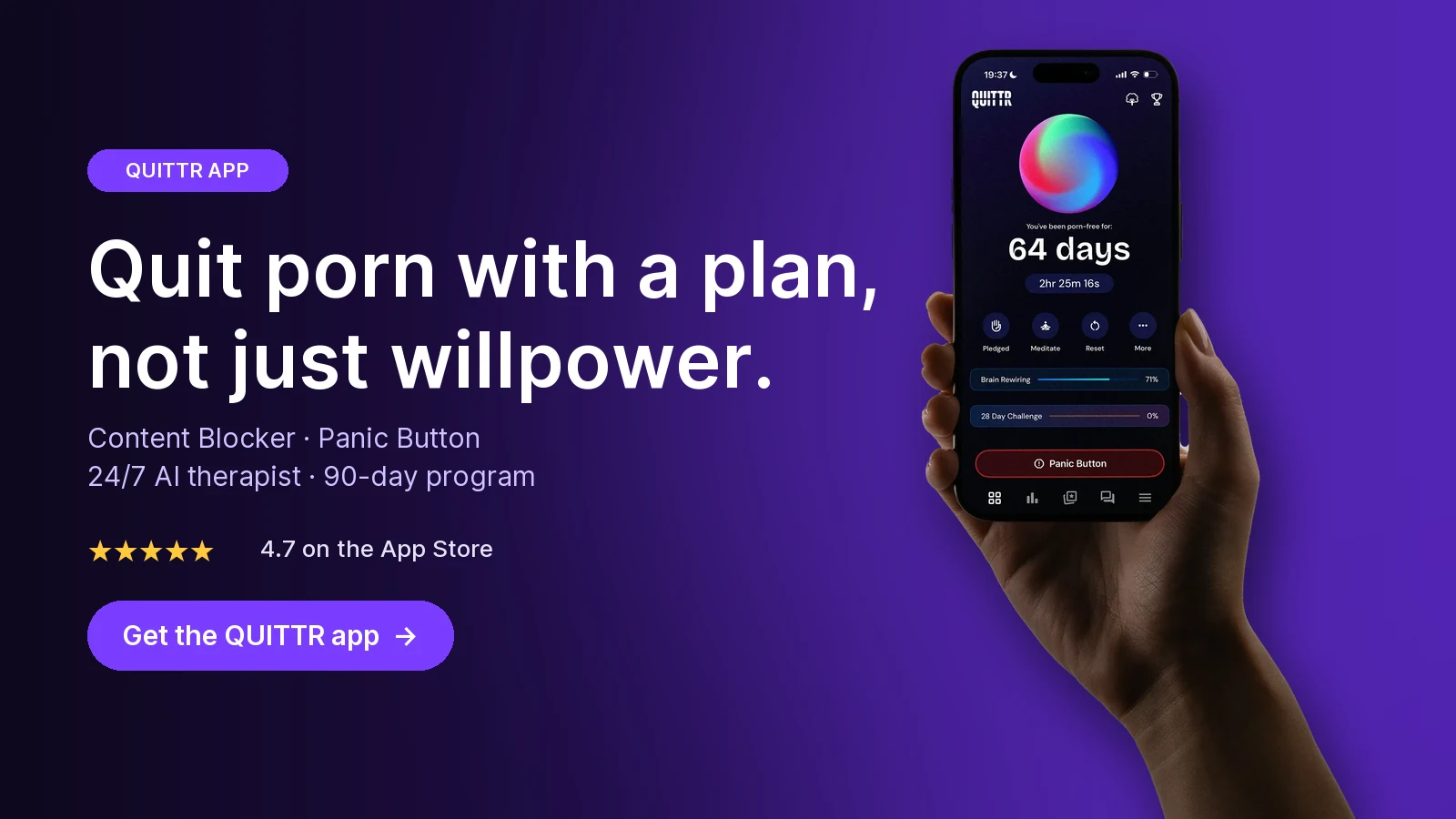
Ready to quit with a plan? Download QUITTR for iPhone or Android → · See how the app works
Step 3: Lock Down an Android Phone (Android 15, 16 and 17)

What you can do depends on your Android version. Android 17 finally has a built-in, PIN-locked option. Android 15 and 16 need a few more pieces.
Android 17: use Parental controls on your own phone
Android now has on-device Parental controls in Settings, and Google's Android Help lists the latest version of Android 17 or later as the requirement. Unlike Family Link, the on-device controls don't need a child's Google Account, which makes them usable on your own phone.
According to Google's help page:
Open Settings and tap Parental controls.
Tap Set up Parental controls PIN. Your lock holder enters a PIN of at least 4 digits.
Add a recovery account and use your lock holder's email, not yours. Google says that without a recovery account, a forgotten PIN means a factory reset.
Go to Parental controls > Web content filters. Turn on Block explicit sites and Filter explicit search results.
Go to Parental controls > App store filters > Google Play Store and set age restrictions for new installs.
To block other browsers or VPN apps, go to Parental controls > App limits, select the app and turn off Allow app.
Know the limits Google spells out:
The web filter only applies to the Google app (16.42+), Chrome (140.0.7332.0+), Android System WebView (139+) and other providers that integrate with it. Google warns explicit content may still show in other apps and browsers, which is why step 6 matters.
When Block explicit sites is on, sites you visit in Chrome are sent to Google to check.
You can't turn the controls on if the phone has a work profile or a private space, so delete a private space first.
Google says that while on-device controls are active, some device settings are restricted so they can't be used to bypass the controls.
Android 15 and 16: Private DNS plus a blocker that can't be uninstalled
Start with Private DNS, which filters every app on Wi-Fi and mobile data. Per Google's Android Help:
Open Settings > Network & internet > Private DNS (if your phone's menus differ, search Settings for "Private DNS").
Choose Private DNS provider hostname.
Enter
family-filter-dns.cleanbrowsing.organd tap Save.
The problem: anyone holding the phone can switch Private DNS back to Automatic or Off in a few taps, and Android 15 and 16 have no passcode for it.
So add a blocker app with uninstall protection, and ideally one where your accountability partner has to approve changes. For example, BlockerX lists Prevent Uninstall and an Accountability Partner among its premium features (as of October 2026, $109.96 a year or $199.97 lifetime, both shown as discounted prices). Whatever you choose, have your lock holder set any app password.
Can you use Family Link on yourself?
Not in any way you can rely on. Google documents Family Link for a parent who is 18 or older supervising a child's or teen's account, and the child has to agree to supervision. Google also says a parent's approval is needed to stop supervision only while the user is under 18. In other words, it isn't built for an adult, and its age rules wouldn't hold you anyway. On Android 17, use the on-device Parental controls instead.
Don't forget Chrome's secure DNS
Chrome can send lookups to its own DNS provider. Chrome's help page shows the setting at Chrome > Settings > Privacy and security > Use secure DNS, where you can choose a custom provider. On Android 15 and 16, keep it on your current provider or off. On Android 17 this gap closes itself: Google says you can't use Chrome's secure DNS feature when parental controls are on.
Step 4: Close the Loopholes People Actually Use

These are the common ways a "permanent" setup gets undone, and the fix for each.
Another browser
What happens: A new browser may skip one layer
iPhone fix: Installing Apps: Don't Allow; DNS profile still filters
Android fix: Block the app in Parental controls (Android 17); Private DNS still filters
VPN app
What happens: DNS goes through the VPN, past your filter
iPhone fix: Installing Apps: Don't Allow; CleanBrowsing Family blocks VPN domains
Android fix: CleanBrowsing Family; block VPN apps in App limits
Private DNS switched off
What happens: Phone drops back to unfiltered DNS
iPhone fix: Not applicable
Android fix: Android 17 Parental controls; uninstall-protected blocker on 15/16
Browser secure DNS
What happens: Chrome uses its own DNS provider
iPhone fix: Not applicable
Android fix: Set to current provider or off; unavailable with parental controls on
iCloud Private Relay
What happens: Safari traffic goes through Apple's relays
iPhone fix: Turn Private Relay off
Android fix: Not applicable
New account or sign-out
What happens: A fresh account has no restrictions
iPhone fix: Accounts: Don't Allow; passcode blocks sign-out
Android fix: PIN applies to all users; delete private space
Deleting the blocker
What happens: The filter disappears with the app
iPhone fix: Deleting Apps: Don't Allow
Android fix: Uninstall protection or Parental controls
Removing the DNS profile
What happens: One layer disappears
iPhone fix: Supervision locks profiles; Screen Time still filters
Android fix: Not applicable
Explicit search images
What happens: Images show without visiting a porn site
iPhone fix: Lock SafeSearch
Android fix: Filter explicit search results
iCloud Private Relay
Apple says Private Relay encrypts traffic leaving your iPhone and sends it through two separate relays, which prevents network providers from collecting your browsing activity in Safari. That's good for privacy, but it can blind a router filter.
To turn it off: Settings > [your name] > iCloud > Private Relay, tap Private Relay, then Turn Off Private Relay. Avoid Turn Off Until Tomorrow, because Apple says it turns back on within 24 hours. Private Relay is part of iCloud+, so if you don't pay for iCloud+, you can skip this.
Search engines
Image search is a quiet back door. CleanBrowsing's Family filter forces SafeSearch on Google, Bing and YouTube, and Android 17's Filter explicit search results applies SafeSearch too. For locking it everywhere else, see how to lock Google SafeSearch and YouTube Restricted Mode.
Step 5: Test It Like Someone Who Wants In

Don't assume it works. Once it's set up, spend five minutes testing, then close the browser:
Try a known adult domain on Wi-Fi and again on mobile data.
Repeat in every browser on the phone and in a private tab.
Run an image search for a borderline term and check that SafeSearch is on.
Restart the phone and check the blocker app is still running.
Ask your lock holder to try to undo one layer without the code. If they can, fix that gap.
Retest after every major iOS or Android update, because settings and labels move. For device-specific settings beyond this guide, see how to block porn on iPhone and Android.
What to Do If You Already Know the Passcode

This is the most common reason "permanent" blocks fail. You set the code yourself, so it was never really locked. Fix it today:
iPhone: Apple's iOS 27 steps are Settings > Screen Time > Manage Screen Time > Change Screen Time Passcode, then tap Change Screen Time Passcode again. Hand the phone over and let your lock holder type the new code.
Android 17: Go to Settings > Parental controls > Manage parental controls PIN > Change PIN, and let your lock holder enter it. Then update the recovery email to theirs.
Move recovery off your account. A passcode you can reset with your own Apple Account or Google Account is a passcode you know.
Don't keep a copy. No screenshots, no notes app, no sticky note in a drawer.
If there's nobody you can ask right now, a blocker that routes unlock requests through a partner is the next best thing. A therapist or recovery group leader can also hold a code for you.
And if you've used the code to get around your own blocks before, treat that as information, not proof that you're hopeless. Write down when it happened and what came right before it (tired, bored, lonely, late at night). Those patterns belong in a relapse prevention plan.
Honest Limits: What "Permanent" Can't Do
You should know where this setup stops working, so a gap doesn't surprise you.
A full reset wipes everything. Google says a forgotten Android parental controls PIN without a recovery account means a factory reset, and any phone you own can be reset. The goal isn't an unbreakable phone. It's turning a five-second impulse into an hours-long project that involves another person.
Filters help; they don't guarantee. Apple calls its setting Limit Adult Websites, and Google says its filter helps block explicit sites and warns content may still show in other apps. New sites and social media will sometimes get through. Add them to Never Allow or your blocker when they do.
Other devices are separate. A tablet, laptop or work computer needs its own setup. Your router covers the devices on your Wi-Fi, not your phone on mobile data.
Some filters cost you privacy. Android's Block explicit sites sends the sites you visit in Chrome to Google for checking. DNS providers see your lookups. Decide what you're comfortable with.
Blocking doesn't touch the urge. A blocked page doesn't help you get through the next 20 minutes. If your use feels out of control, or it's tied to anxiety, depression or relationship problems, a licensed therapist is worth more than any setting.
Key takeaways
Permanent means layered: a built-in filter, a filtering DNS that works on mobile data, and a blocker you can't delete.
Let a trusted person set the Screen Time passcode or Android parental controls PIN, and tie recovery to their account, not yours.
On iPhone, set Deleting Apps and Accounts to Don't Allow and turn off iCloud Private Relay. On Android 17, use Parental controls; on 15 and 16, pair Private DNS with an uninstall-protected blocker.
Close the loopholes: other browsers, VPNs, Private DNS, Chrome secure DNS, new accounts and image search.
Test on Wi-Fi and mobile data after every update, and pair the blocks with a plan for urges.
How QUITTR Can Help
A permanent block stops the page from loading. QUITTR is built for what happens next. It's a paid recovery app for iOS and Android, with a Chrome extension, that combines a blocker with tools for the urge itself.
The QUITTR Content Blocker filters adult websites, risky search terms and porn URLs, integrates with your phone's system to block adult content across browsers, and blocks inappropriate ads, so it fits as the blocker-app layer in this setup. When an urge hits anyway, the Panic Button launches breathing exercises, distractions and motivational messages to break autopilot. Melius, the AI therapist, offers private 24/7 support to help you spot triggers and get back on track after a relapse.
QUITTR is subscription-based, so check the app for current pricing. Download QUITTR here.
“I didn’t think I could ever break free from porn—but QUITTR’s content blocker gave me the tools to regain control. The sense of achievement and freedom I feel today is beyond words.” — Daniel Franklin
Join the 28-day challenge. Get QUITTR on the App Store or Google Play → · Learn more about QUITTR
Related articles
Frequently Asked Questions
How do I block adult sites on my phone permanently?
Turn on your phone's built-in adult website filter, add a filtering DNS that works on Wi-Fi and mobile data, and install a blocker app that can't be deleted without permission. Then let a trusted person set the Screen Time passcode or Android parental controls PIN, and tie the passcode recovery to their account instead of yours. That way, undoing the setup takes another person, not a few taps.
Can someone else set my Screen Time passcode?
Yes. Hand your iPhone to the person you trust and let them go to Settings > Screen Time > Manage Screen Time > Lock Screen Time Settings (iOS 27) and type a four-digit code while you look away. Apple lets you add Screen Time Passcode Recovery with an Apple Account, and that account can be different from the one signed in to your phone. Let your lock holder use their own account for recovery, or skip recovery.
How do I make a porn blocker impossible to remove?
On iPhone, set Deleting Apps to Don't Allow under Screen Time > Content & Privacy Restrictions > iTunes & App Store Purchases, behind a passcode you don't know. On Android, use a blocker with uninstall protection, or Android 17's built-in parental controls with a PIN someone else holds. Nothing on a phone you own is truly impossible to remove, but these steps make removal slow and dependent on another person.
Can I use Google Family Link on myself as an adult?
Not in any reliable way. Google documents Family Link for a parent who is 18 or older supervising a child's or teen's account, and a parent's approval is only needed to stop supervision until the user turns 18. On Android 17, the built-in Parental controls in Settings are the better choice, because they're protected by a PIN rather than by your age.
What if I already know my Screen Time passcode?
Change it today with your lock holder. On iOS 27 go to Settings > Screen Time > Manage Screen Time > Change Screen Time Passcode and let them type the new code. Then make sure Passcode Recovery isn't linked to your own Apple Account, or you can reset it yourself on a bad night.
Does iCloud Private Relay get around porn filters?
It can get around network-level filters. Private Relay encrypts your Safari traffic and sends it through two relays, so a router filter may not see the sites you visit. Turn it off in Settings > [your name] > iCloud > Private Relay, and rely on device-level filters like Screen Time and a DNS profile that travel with the phone.
Sources
Block apps, app downloads, websites, and purchases on iPhone (iOS 26) — Apple Support
Change settings and restrictions in the App Store on iPhone — Apple Support
Create, change, or remove a Screen Time passcode on iPhone — Apple Support
Change your Screen Time passcode on an iPhone or iPad — Apple Support
Protect your web browsing with iCloud Private Relay on iPhone — Apple Support
Set up parental controls on an Android device — Android Help
Manage advanced network settings on your Android phone (Private DNS) — Android Help
Add & manage supervision on a current Google Account — Google For Families Help