How to Block Porn on Your Router (Every Device on Your Wi-Fi)
You can block porn on your router by replacing its DNS servers with a free filtering DNS service such as CleanBrowsing Family, OpenDNS FamilyShield or Cloudflare 1.1.1.1 for Families. It's one setting change, and every phone, laptop, TV and console that gets its settings from your Wi-Fi is filtered at once, with nothing to install.
Below you'll find the exact addresses for each filter, where the DNS setting lives on TP-Link, NETGEAR, ASUS, Linksys, Google Nest Wifi and eero, how to test that it works, and how to close the bypass routes most guides skip.
How Router-Level Porn Blocking Works (and What It Can't Do)
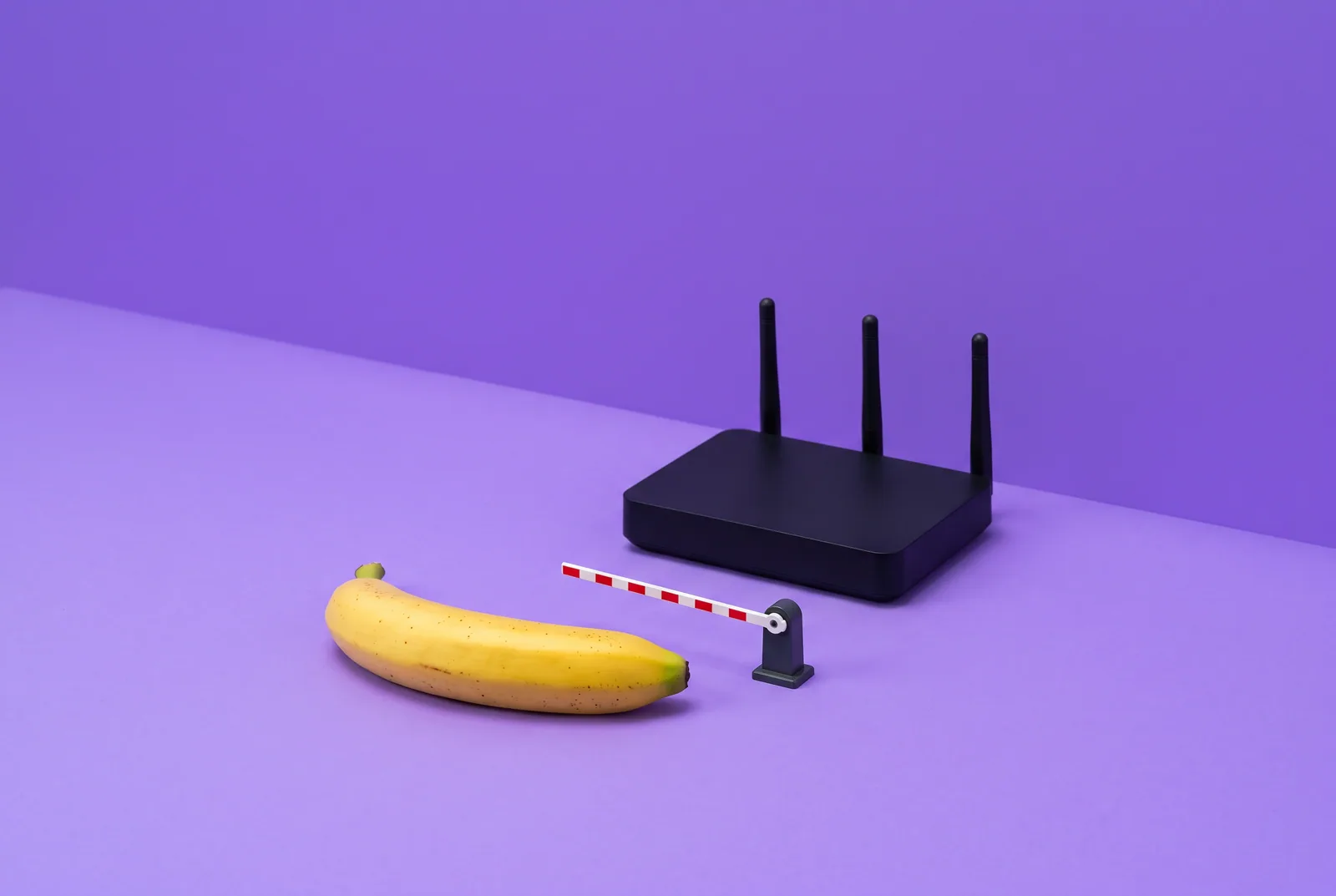
Every time a device opens a website, it first asks a DNS server to translate the name into an IP address. Your router normally passes those questions to your internet provider's DNS. Point the router at a filtering DNS service instead, and lookups for adult domains come back blocked, so the page never loads.
You don't have to configure each device one by one. As CleanBrowsing explains, devices that use DHCP (which is almost everything by default) automatically inherit the router's DNS settings, so one change covers phones, laptops, smart TVs, game consoles and guests.
Be clear-eyed about the limits before you start. Cisco's own FamilyShield documentation says DNS filtering can be bypassed if a user changes DNS settings, uses a VPN, or uses DNS-over-HTTPS in the browser, and that it is not the same as a full proxy or firewall inspection. A router filter also does nothing once a phone leaves Wi-Fi.
That doesn't make it useless. A router filter removes the easy, impulsive path on every device in the house, and it's a strong first layer. If you're working on quitting, friction at the moment of an urge matters, which is a big part of why porn is so hard to quit on willpower alone.
The Best Free DNS Porn Filters Compared

All addresses below were checked on each provider's official page in October 2026. Enter the primary and secondary IPv4 addresses on your router; add the IPv6 pair too if your router has IPv6 DNS fields.
IPv4 (primary / secondary): 185.228.168.168 / 185.228.169.168
IPv6: 2a0d:2a00:1:: / 2a0d:2a00:2::
Encrypted DNS: DoH:
https://doh.cleanbrowsing.org/doh/family-filter/· DoT:family-filter-dns.cleanbrowsing.orgWhat it blocks: Adult sites, proxy and VPN domains, mixed-content sites like Reddit, malicious domains; SafeSearch on Google, Bing and YouTube
Account / cost: Free, no account (throttled, no support)
IPv4 (primary / secondary): 185.228.168.10 / 185.228.169.11
IPv6: 2a0d:2a00:1::1 / 2a0d:2a00:2::1
Encrypted DNS: DoH:
https://doh.cleanbrowsing.org/doh/adult-filter/· DoT:adult-filter-dns.cleanbrowsing.orgWhat it blocks: Adult sites and malicious domains; SafeSearch on Google and Bing. Does not block proxies, VPNs or Reddit
Account / cost: Free, no account (throttled, no support)
IPv4 (primary / secondary): 208.67.222.123 / 208.67.220.123
IPv6: Not listed in Cisco's documentation
Encrypted DNS: Not listed
What it blocks: Sites commonly categorized as adult content, using predefined settings
Account / cost: No account; enter the addresses
Cloudflare 1.1.1.1 for Families
IPv4 (primary / secondary): 1.1.1.3 / 1.0.0.3
IPv6: 2606:4700:4700::1113 / 2606:4700:4700::1003
Encrypted DNS: DoH:
https://family.cloudflare-dns.com/dns-queryWhat it blocks: Malware and adult content
Account / cost: No account; enter the addresses
IPv4 (primary / secondary): From your account's setup instructions
IPv6: From your account's setup instructions
Encrypted DNS: DoH and DoT
What it blocks: Configurable: porn and other categories, SafeSearch, YouTube Restricted Mode, specific sites and apps
Account / cost: Free up to 300,000 queries/month; Pro CHF 2/month or CHF 20/year (as of October 2026)
Two details in that table are easy to miss:
Cloudflare has two family pairs. 1.1.1.2 / 1.0.0.2 blocks only malware. For adult content you need 1.1.1.3 and 1.0.0.3.
NextDNS's free tier quietly stops filtering. Its pricing page says that after the free monthly quota, NextDNS "will continue to answer DNS queries like a classic non-blocking DNS service". In other words, porn blocking switches off until the month resets unless you're on a paid plan.
Which one should you pick?
Want the strictest free setup? CleanBrowsing Family. It's the only no-account option here that also blocks proxy and VPN domains, which are the most common ways around a DNS filter.
An adult blocking porn for yourself and you still use Reddit? CleanBrowsing Adult or Cloudflare 1.1.1.3.
Need IPv6 coverage with no account? Cloudflare 1.1.1.1 for Families or CleanBrowsing both publish IPv6 addresses.
Want schedules, custom block lists and per-category control? NextDNS, ideally on the paid plan so filtering never lapses.
Whichever you choose, use the provider's primary and secondary addresses together. Don't mix one filter with an unfiltered server like 8.8.8.8 as the backup, or some lookups will skip the filter entirely.
Step-by-Step: Block Porn on Any Router
The menu names differ by brand, but the process is the same everywhere. These steps follow CleanBrowsing's generic router guide, with brand details from each manufacturer's help center.
Connect to your Wi-Fi on a laptop or phone.
Open the router's admin page. Type the gateway address into a browser. Common ones are 192.168.0.1 or 192.168.1.1, or a brand address such as routerlogin.net (NETGEAR), tplinkwifi.net (TP-Link) or asusrouter.com (ASUS). Some mesh systems only work through their app.
Log in with the router's admin username and password. If you never changed it, the default is usually on the router's label or in its manual.
Find the DNS fields. Look under WAN, Internet, Network Settings or DHCP.
Note the current DNS setting (often "automatic") so you can roll back if something breaks.
Switch DNS from automatic to manual and enter your filter's primary and secondary IPv4 addresses.
Add the IPv6 DNS pair if your router has IPv6 DNS fields (more on why below).
Save, then reboot the router. Many routers cache old DNS answers until they restart.
Reconnect your devices. CleanBrowsing says to allow 5 to 10 minutes for DHCP changes to reach every device; turning Wi-Fi off and on speeds it up. On a computer you can also flush the local cache (on Windows:
ipconfig /flushdns).Test it using the checks in the testing section below.
Then do one more thing most guides forget: change the router's admin password. Anyone who can log in to the router can switch the filter off in 30 seconds.
Ready to quit with a plan? Download QUITTR for iPhone or Android → · See how the app works
Where the DNS Setting Lives on Popular Routers

Here's where each major brand puts the setting, according to its own help center. Firmware updates move menus around, so if a label doesn't match exactly, look for the closest equivalent.
TP-Link (Wi-Fi routers)
Where to change DNS: Advanced > Network > Internet > "Use the following DNS addresses"
Web or app?: Web (tplinkwifi.net)
TP-Link (DSL modem routers)
Where to change DNS: Advanced > Network > LAN Settings > Modify
Web or app?: Web (tplinkmodem.net)
TP-Link Deco
Where to change DNS: Separate Deco procedure
Web or app?: Deco app
NETGEAR (Nighthawk and other listed models)
Where to change DNS: BASIC > Internet > "Use these DNS Servers"
Web or app?: Web (routerlogin.net)
ASUS
Where to change DNS: WAN > Internet Connection > WAN DNS Setting
Web or app?: Web (asusrouter.com)
Linksys mesh
Where to change DNS: Menu > Advanced Settings > Local Network Settings > DNS Settings > Manual
Web or app?: Linksys app
Google Nest Wifi / Google Wifi
Where to change DNS: Home > Wifi > Network settings > Advanced Networking > DNS > Custom
Web or app?: Google Home app
eero
Where to change DNS: Settings > Advanced networking > DNS > Custom DNS
Web or app?: eero app
TP-Link
On TP-Link Wi-Fi routers, TP-Link's FAQ gives this path:
Log in at tplinkwifi.net or 192.168.0.1.
Go to Advanced > Network > Internet.
Under Advanced Settings, choose Use the following DNS addresses and enter the primary and secondary DNS.
Click SAVE, then reboot under Advanced > System > Reboot. TP-Link says the router must be rebooted for new DNS settings to take effect.
DSL modem routers use Advanced > Network > LAN Settings > Modify instead (log in at tplinkmodem.net or 192.168.1.1). Deco mesh systems are configured in the Deco app with a separate procedure that TP-Link links from the same FAQ.
NETGEAR
NETGEAR's support article covers dozens of Nighthawk, RAX, gaming and Wi-Fi 6E models:
Go to routerlogin.net and log in. The default username is admin and the default password is password, which is exactly why you should change it.
On the BASIC page, select Internet.
In the Domain Name Server (DNS) Address section, select Use These DNS Servers.
Enter the primary and secondary addresses and click Apply.
That article doesn't cover Orbi mesh systems, so Orbi owners should check their model's manual.
ASUS
ASUS's FAQ splits the steps by firmware version. Log in at asusrouter.com or the router's LAN IP first.
Firmware newer than 3.0.0.4.388: Go to WAN > Internet Connection > WAN DNS Setting > DNS server, click Assign, choose Manual Setting, enter both addresses, click OK, then Apply.
Older firmware: Go to WAN > Internet Connection > WAN DNS Setting, set Connect to DNS Server automatically to No, enter both addresses, then click Apply.
ASUS warns the internet will drop briefly while the change applies. Afterward, you can confirm the new servers under Network Map by clicking the Internet icon.
Linksys
Current Linksys mesh systems are set up in the Linksys app. Per Linksys support:
Open the app and tap the menu icon in the upper-left corner.
Tap Advanced Settings > Local Network Settings.
Scroll down to DNS Settings, switch from Auto to Manual, and enter your addresses.
Tap Save.
If Linksys's built-in Safe Browsing feature (which uses OpenDNS) is on, choosing manual DNS turns it off, because only one set of DNS servers can be active at a time.
Google Nest Wifi and Google Wifi
Google's routers have no web admin page. In the Google Home app:
Go to Home > Wifi > Network settings.
Tap Advanced Networking > DNS.
Choose Custom and enter primary and secondary servers. Google supports separate IPv4 and IPv6 lists here, so add both pairs.
Tap Save.
Google's caution is worth repeating: if you type a wrong or dead DNS address, none of your connected devices will reach the internet. Keep your phone on mobile data while you make the change so you can switch it back.
eero
In the eero app, tap Settings (bottom right) > Advanced networking > DNS, turn on Custom DNS, enter IPv4 and/or IPv6 addresses, and tap Save. Your network reboots to push the change to devices.
If the DNS option is grayed out, you're using eero Plus. eero says its Plus features filter all DNS requests on the network, so custom DNS won't work as expected until you turn off Advanced Security, Ad Blocking and any Content Filters. The upside: eero also says users can't bypass eero Plus by changing DNS on their own devices. If you already use eero Plus, its Content Filters may be the simpler option.
ISP Routers That Lock DNS (and Mesh Systems)

If you rent your modem-router from your internet provider, you may find the DNS fields missing or grayed out. CleanBrowsing says plainly that many ISP-provided routers lock the DNS fields. You have three workarounds:
Put your own router behind the ISP box. Set the ISP gateway to bridge mode (or put your router in its DMZ), then connect your own router and set the filter there. This is the cleanest fix because you control the DNS for the whole home.
Set DNS on each device. It works, but it's easy to miss a device, and new devices aren't covered until you set them up.
Ask your provider. Check whether your provider's gateway app has its own parental controls, and test what they actually block before relying on them.
Some ISP equipment does allow changes. TP-Link, for example, publishes separate instructions for its ISP-customized models, so search your gateway's exact model number before you assume it's locked.
Mesh systems (eero, Google Nest Wifi, Deco, Orbi, Linksys Velop) are simpler than they look. You set DNS once on the main unit, usually in the app, and the satellites pass it along. The two traps:
Double routing. If your mesh sits behind an ISP router that is still routing, devices on the ISP router's own Wi-Fi bypass your mesh settings. Turn off the ISP router's Wi-Fi or put it in bridge mode.
Mesh features that override DNS. As covered above, eero Plus takes over DNS filtering, and Linksys Safe Browsing and manual DNS can't run together.
How to Test That Your Porn Filter Is Working
Don't assume it works. Test from at least one phone and one computer, on Wi-Fi only, in every browser you use.
Cloudflare 1.1.1.1 for Families. Cloudflare provides two official test pages: https://nudity.testcategory.com/ should fail to load if adult filtering is active, and https://malware.testcategory.com/ checks malware blocking. Expect a connection error rather than a friendly block page: Cloudflare's docs say filtered domains such as malware sites resolve to 0.0.0.0 instead of their real address.
CleanBrowsing. CleanBrowsing's router guide includes a verify step:
Run
nslookup -type=TXT iptest.whois.dnscontest.cleanbrowsing.org(Windows) ordig TXT iptest.whois.dnscontest.cleanbrowsing.org(Mac/Linux). A reply with CleanBrowsing filter details means you're on their DNS; no answer means you're not.Open CleanBrowsing's DNS leak test at cleanbrowsing.org/dnsleaktest. The results should show CleanBrowsing's servers, not your ISP's.
A blocked site should show a block page or a "domain not found" error.
OpenDNS FamilyShield. Cisco's checklist is short: confirm the device or network really uses 208.67.222.123 and 208.67.220.123, confirm a normal site still resolves, and if filtering doesn't seem to work, check that nothing else overrides it, such as VPN DNS, browser DNS-over-HTTPS or manual DNS settings.
On ASUS routers, the Network Map > Internet status shows which DNS servers the router is actually using.
If a test fails on one device but passes on another, the router is fine. That device is skipping the router's DNS, and the next section tells you how.
Bypass Routes and How to Close Each One

A DNS filter only works when a device actually asks the router's DNS. Here's every common way around it and the fix for each.
Manually set DNS on a device
What happens: Device ignores the router's DNS
Fix: Set the device back to automatic, or block outside DNS at the firewall
Browser secure DNS (DoH)
What happens: Browser sends lookups over HTTPS to its own provider
Fix: Turn it off, or point it at your filter's DoH address
Android Private DNS
What happens: Phone uses its own encrypted DNS server
Fix: Set it to your filter's hostname
iCloud Private Relay
What happens: Lookups go through Apple's relay
Fix: Block the relay's hostnames or turn Private Relay off
VPN or proxy
What happens: All traffic, including DNS, goes through the VPN
Fix: Use a filter that blocks VPN/proxy domains; device-level controls
IPv6 without IPv6 DNS
What happens: Device resolves over IPv6, skipping the filter
Fix: Add the filter's IPv6 addresses or disable WAN IPv6
Mobile data
What happens: Router never sees the traffic
Fix: Device-level filter
Router admin password
What happens: Filter gets switched off
Fix: Strong password held by someone you trust
Devices with hard-coded DNS
Some people, and some apps, set their own DNS servers so they never touch your router's. CleanBrowsing notes that tech-savvy users or apps can override router DNS by hardcoding their own DNS servers. If your router's firewall supports custom rules, the fix is a rule that blocks outbound port 53 (DNS) to everything except your filter's IP addresses, or a redirect (DNAT) rule that forces all port-53 traffic to your filter. On basic consumer routers without that option, check each device's network settings and set DNS back to automatic.
DNS-over-HTTPS in browsers
Modern browsers can send DNS lookups over HTTPS straight to their own provider, which skips your router entirely, and port-53 firewall rules can't see it. CleanBrowsing's guide says to disable Firefox's TRR mode or Chrome's secure DNS setting. In Chrome or Edge, search settings for "secure DNS"; in Firefox, search settings for "DNS over HTTPS." Either turn it off or set a custom provider using your filter's DoH address from the table above, so the browser stays filtered even off your Wi-Fi. For more browser-specific blocking, see our guide to blocking adult websites on Google Chrome.
Android Private DNS
Android has a system-wide encrypted DNS setting. Per Google's Android help, it's under Settings > Network & internet > Private DNS (search for "Private DNS" if your phone's menus differ), with three options: Off, Automatic, or Private DNS provider hostname. If someone types a public resolver's hostname here, the phone skips your router filter.
Turn this from a bypass into a fix: choose Private DNS provider hostname and enter CleanBrowsing's DoT hostname, family-filter-dns.cleanbrowsing.org (or adult-filter-dns.cleanbrowsing.org), then tap Save. Because the setting lives on the phone, it keeps filtering on mobile data too. The weakness is that anyone with access to the phone's settings can change it back.
iCloud Private Relay
iCloud Private Relay protects DNS lookups by sending them through Apple's relay, which means your router's filter may not see them. Apple's guidance for networks that must filter traffic is to make two hostnames fail to resolve: mask.icloud.com and mask-h2.icloud.com. Apple says the user is then alerted to disable Private Relay for that network or choose another network. You can do this if your DNS service lets you add custom blocked domains. On your own iPhone or Mac, the simpler fix is to turn Private Relay off in iCloud settings.
VPNs and proxies
A VPN tunnels all traffic, DNS included, past your router, and no router DNS setting can stop an already-connected VPN. Two things help. First, CleanBrowsing's Family filter blocks proxy and VPN domains used to bypass filters, which makes it harder to find and sign up for one on your Wi-Fi (the Adult filter and Cloudflare's family servers don't do this). Second, use device-level controls that restrict installing apps, so a VPN app can't be added in a weak moment.
IPv6 leaks
If your internet connection uses IPv6 and you only set IPv4 DNS, CleanBrowsing warns that IPv6-capable devices may bypass your IPv4 DNS settings entirely. Enter the filter's IPv6 pair in the router's IPv6 DNS fields (CleanBrowsing and Cloudflare both publish them; Cisco's FamilyShield documentation lists IPv4 only). If your router has no IPv6 DNS fields, CleanBrowsing suggests disabling IPv6 on the WAN side so everything goes through IPv4.
Mobile data
This one has no router fix. When a phone drops off Wi-Fi and uses 4G or 5G, its lookups go to the carrier, and your router never sees them. For most people trying to quit, the phone is the device that matters most, so this gap is the biggest one. Close it on the device itself (see the next section).
The router password itself
If you're blocking porn for yourself, the person most likely to undo the filter at 1 a.m. is you. Change the router admin password, and consider giving it to someone you trust: a partner, friend or accountability partner. Write the old one down nowhere you can find it. This sounds extreme until you remember the whole point is to put friction between an urge and a screen.
Layer It: Router Filter + Device Settings + a Plan

A router filter is the floor, not the ceiling. The most reliable setup has three layers:
Network layer (this article). Filtered DNS on the router, IPv6 covered, admin password changed and held by someone else.
Device layer. On Android, set Private DNS to a filtering hostname. On iPhone, use Screen Time's content restrictions to limit adult websites. On computers, set DNS and browser secure-DNS settings so they stay filtered on any network. Our step-by-step guides cover blocking porn on iPhone and Android and blocking porn on a computer.
Behavior layer. Filters reduce access; they don't reduce urges. Pair them with a plan for what you'll do when an urge hits, and with something that tracks your progress.
If you're comparing app-based blockers to add on top of DNS filtering, our roundup of the best porn blockers covers the main options and what each one actually blocks.
Key takeaways
To block porn on your router, replace its DNS with CleanBrowsing Family (185.228.168.168 / 185.228.169.168), OpenDNS FamilyShield (208.67.222.123 / 208.67.220.123) or Cloudflare for Families (1.1.1.3 / 1.0.0.3).
Add the IPv6 DNS pair too, reboot the router, and test with official checks such as Cloudflare's nudity.testcategory.com or CleanBrowsing's TXT lookup.
Browser secure DNS, Android Private DNS, iCloud Private Relay, VPNs and manual DNS can all skip the filter; turn each one off or point it at your filter.
A router can't filter mobile data, so add a device-level blocker on every phone.
Change the router password and let someone you trust hold it.
How QUITTR Can Help
A router filter covers your Wi-Fi. QUITTR covers the device that leaves the house. Its Content Blocker filters adult websites, risky search terms and porn URLs, integrates with your phone's system to block adult content across browsers, and also blocks inappropriate ads, so the mobile-data gap isn't wide open. A Chrome extension is available for your computer.
Blocking is only half of it. When an urge hits anyway, QUITTR's Panic Button launches a quick sequence of distractions, breathing exercises and motivational messages to break autopilot. The tracker shows your porn-free days, and a 90-day program with CBT-based lessons and an anonymous community helps you work on why you reach for porn in the first place.
QUITTR is a paid subscription on iOS and Android; check the app for current pricing. Download QUITTR here.
“I didn’t think I could ever break free from porn—but QUITTR’s content blocker gave me the tools to regain control. The sense of achievement and freedom I feel today is beyond words.” — Daniel Franklin
Join the 28-day challenge. Get QUITTR on the App Store or Google Play → · Learn more about QUITTR
Related articles
Frequently Asked Questions
Can I block porn on my Wi-Fi router for free?
Yes. Log in to your router and replace its DNS servers with a free family filter such as CleanBrowsing Family (185.228.168.168 and 185.228.169.168), OpenDNS FamilyShield (208.67.222.123 and 208.67.220.123) or Cloudflare 1.1.1.1 for Families (1.1.1.3 and 1.0.0.3). Every device that gets its settings from the router is then filtered without installing anything.
Does blocking porn on the router work on mobile data?
No. A router filter only sees traffic that goes through your Wi-Fi. The moment a phone switches to 4G or 5G it uses the carrier's DNS instead. To cover phones everywhere, add a device-level filter such as Android's Private DNS set to a filtering hostname, iPhone Screen Time restrictions, or a blocker app.
What is the difference between the CleanBrowsing Family and Adult filters?
Both block adult sites, malicious domains and enforce SafeSearch on Google and Bing. The Family filter also blocks proxy and VPN domains, mixed-content sites like Reddit, and enforces SafeSearch on YouTube. The Adult filter leaves proxies, VPNs and Reddit alone, which some adults prefer for day-to-day use.
Why does porn still load on one device after I changed the router DNS?
That device is probably not using the router's DNS. Common causes are a manually set DNS server, the browser's own secure DNS (DNS-over-HTTPS), Android Private DNS, iCloud Private Relay, a VPN, or a cached old lookup. Reconnect the device to Wi-Fi, flush its DNS cache, and check each of these settings.
Is OpenDNS FamilyShield or Cloudflare 1.1.1.3 better for blocking porn?
Both are no-account, enter-the-addresses filters for adult content. Cloudflare publishes IPv6 addresses and a DNS-over-HTTPS endpoint for its family filter, while Cisco's FamilyShield documentation lists only two IPv4 addresses. If you want proxy and VPN domains blocked too, CleanBrowsing's Family filter goes further than either.
Can someone get around a router porn filter?
Yes, a determined person can. VPNs, browser DNS-over-HTTPS, manual DNS settings, mobile data and anyone who knows the router password can all route around it. That is why the router filter works best as one layer alongside device settings, a strong admin password held by someone you trust, and a recovery plan.
Sources
How to Change DNS on Your Router — Complete Setup Guide — CleanBrowsing
Set up 1.1.1.1 (including 1.1.1.1 for Families and router setup) — Cloudflare Docs
How do I set static Domain Name System servers on my NETGEAR router? — NETGEAR Support
How to manually assign WAN DNS server to ASUS router? — ASUS
Configuring the DNS Settings of your Linksys Mesh system — Linksys Support
How do I set up custom DNS servers with eero? — eero Support
Manage advanced network settings on your Android phone — Android Help
Prepare your network or web server for iCloud Private Relay — Apple Developer